 JuTrack
Guide
How to use JuTrack.
From your first group to your first settle-up, in a few steps.
1First steps
- Get JuTrack from Google Play and open it.
- Type your name and pick a colour. No account, no e-mail.
- Create your first group: Home, Trip, whatever you like. It starts with the basic categories and the euro.
For another group, tap the group name at the top: the list opens, with New group.
2Inviting someone
- In the group, tap the settings icon at the top right, then Invite someone.
- Send the link with Share the link, or let them scan it with Show the QR code.
- On their side, opening the link is enough. With the QR: list of groups → Join with an invite.
The link holds the group's key and expires after 5 minutes: send it only to the people you want in.
3Adding an expense
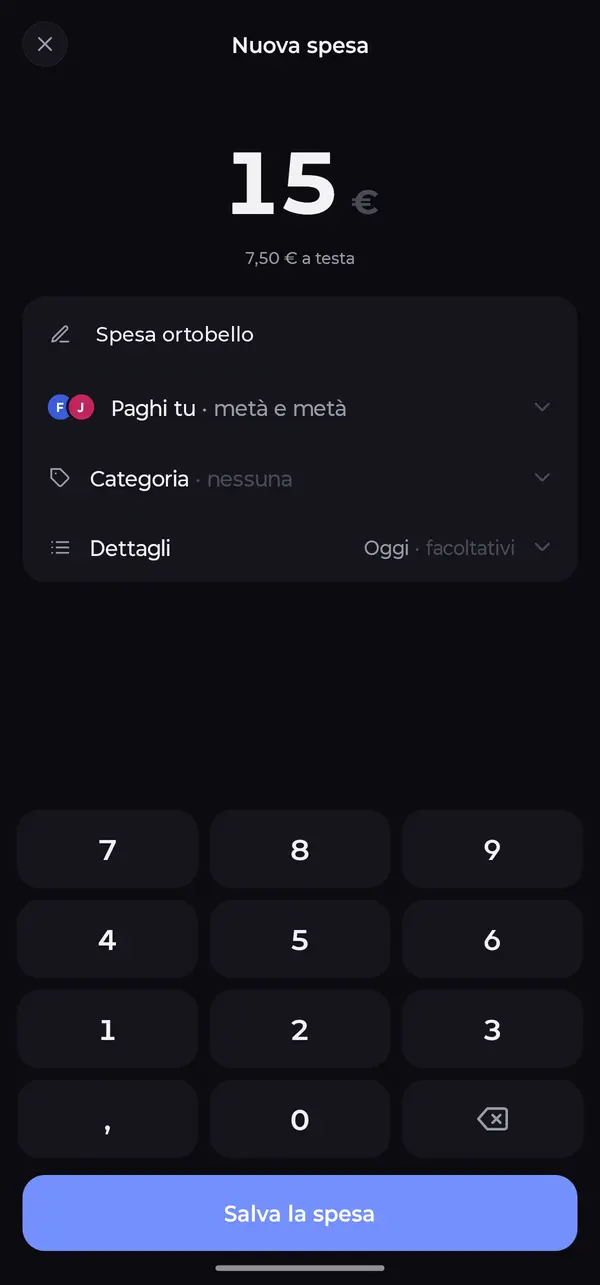
- Tap Add expense.
- Type the amount. The keypad has a calculator too.
- Choose who pays and how it splits: Half and half, Shares or Payer only.
- Category and date, if needed. Name, shop and tags are under Details.
- Save the expense. It reaches the other phones as soon as there is a connection.
To fix or delete it, tap it in the list.
4Writing it in one sentence
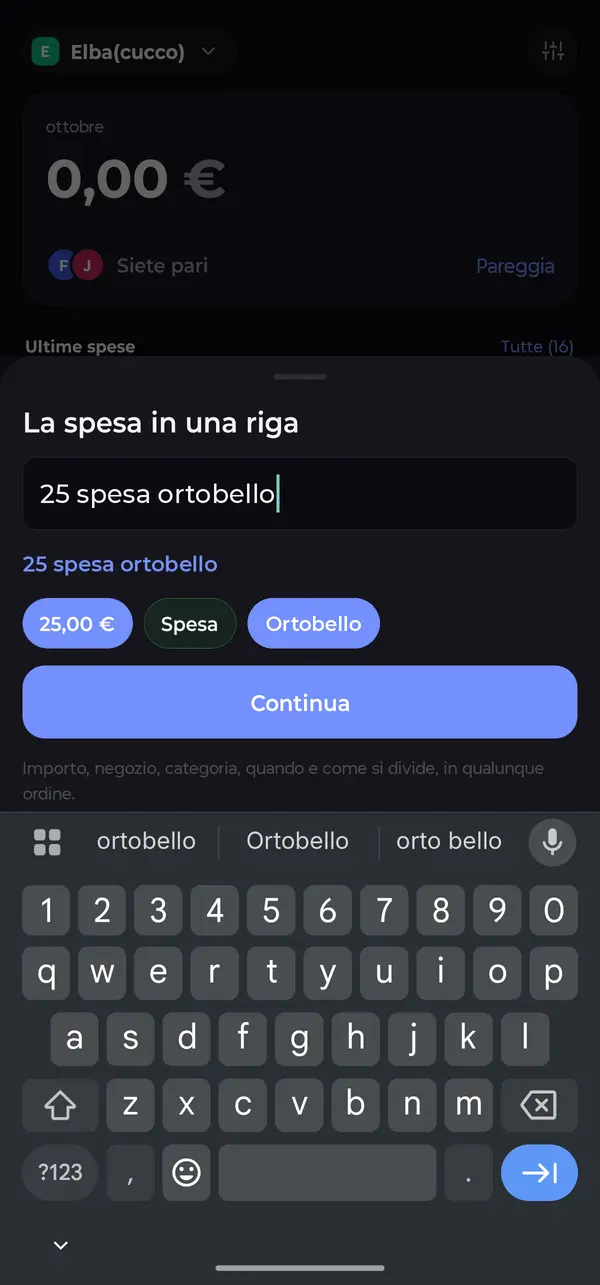
For now this works with the app in Italian. The pencil button, next to Add expense: write it the way you'd say it, in any order:
25 spesa ortobello ieri metà a te40 ristoranti pagato da Juju60 viaggi sabato vacanza
Amount, date and payer are always understood. Category, shop and tags when the group already uses them. You check everything before saving.
5Balances and settling up
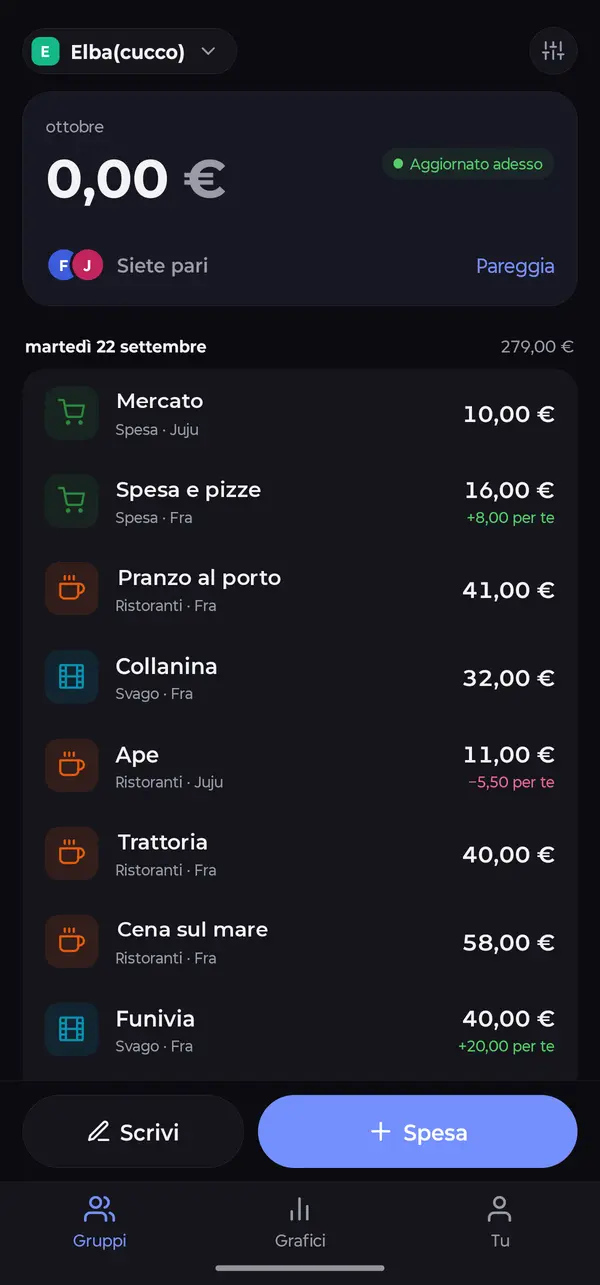
The balance sits at the top of the group: who owes whom, and how much.
- When you pay each other back, tap Settle up.
- Check the amount and tap Paid.
Settlements stay in the history: delete one and the debt goes back to what it was.
6Make the group yours
From the group settings, at the top right:
- Currency
- One per group, the same for everyone.
- Categories
- Add or archive them: older expenses stay as they are.
- Shops and tags
- Entries you pick in a tap, instead of typing them again.
- Budgets
- A monthly limit per category. With alerts on, you know when you get close.
- Regenerate the key
- To remove someone's access. Whoever stays gets invited again.
7Charts
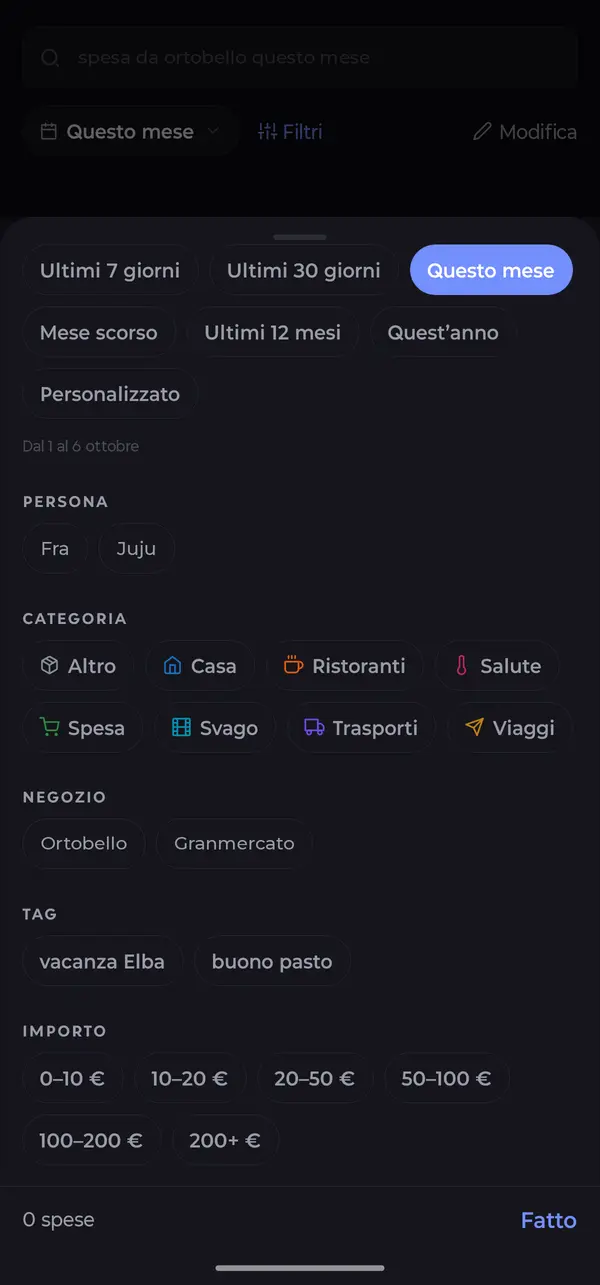
The Charts tab answers seven questions: how much, where, when, how it goes over time, which shops, what habits, where you stand.
- Filters picks period, person, category, shop, amount.
-
With the app in Italian, you can also ask in a sentence:
spesa da ortobello questo mese. - Tap a category to filter every chart.
- Edit reorders or hides the cards.
8Your data
Under You → Your data there are three things:
- Recovery code
- Save it right away: it gets you back in on a new phone.
- Automatic backup
- Pick a folder: every 7 days JuTrack saves a copy of each group there.
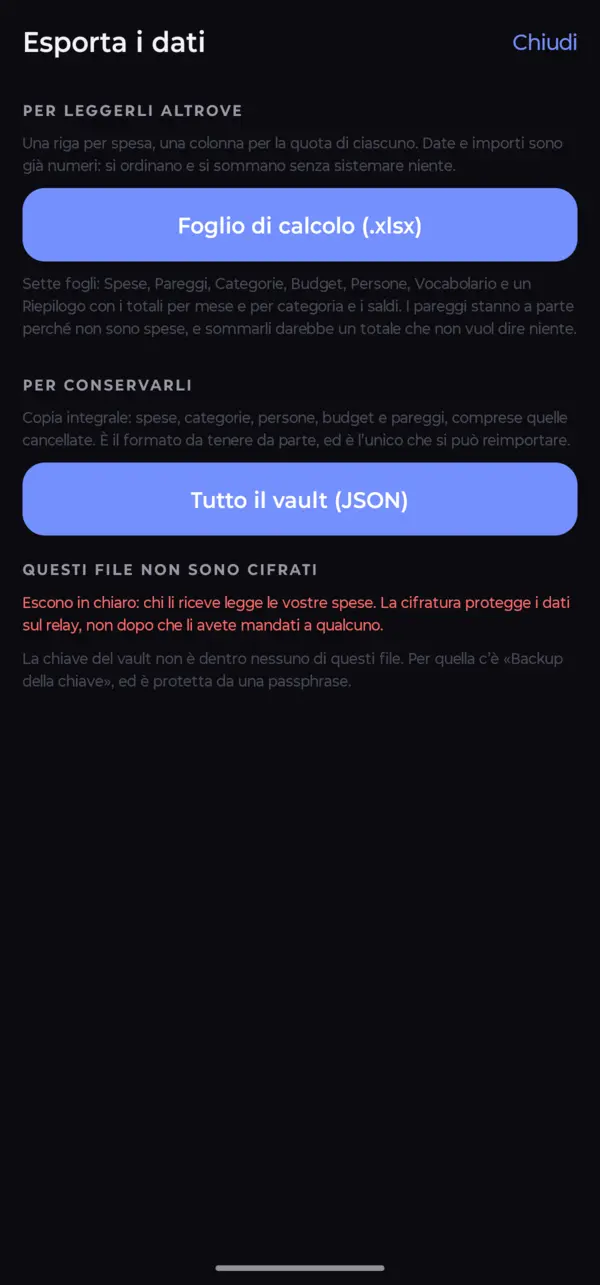
- Export
- An Excel sheet to read, or a full copy to restore.
9Changing phones
- Install JuTrack on the new phone and tap I've used JuTrack before.
- Type your recovery code. Or, if you still have the old phone, open the code there and scan its QR.
- All your groups come back, under your name.
Lost both phone and code? Ask someone in the group to tap your name and invite you again.
More questions?
The most common answers are in the FAQ.
Read the FAQ jutrack.info@gmail.com